(Text)(White).png)
(Text)(White).png)
(Text)(White).png)
(Text).png)

Our Apps were designed to ease the strain of data that ADs and PAs deal with on a daily basis by organizing, simplifying and displaying vital details all in one place. Our goal is to do this in the most affordable way. That is why most our apps are completely free for a single user. If you want cloud sharing with your team, there's a small fee for only one person per team, preferably the AD would cover this instead of their PAs.


/01
How It Works - AD Roll Call
Plan Schedule
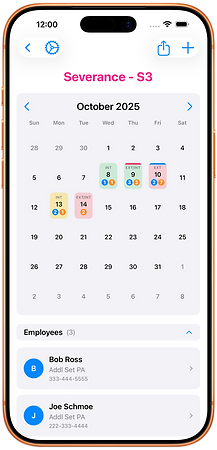
• Start by inputting the size of workforce you need each day.
• Then import the contacts you need to work with by tapping the plus button in the top right.
• To save contacts into the app, either manually input them or import from your iPhone's contacts app.
%20Portrait%203.png)
/02
Book & Schedule
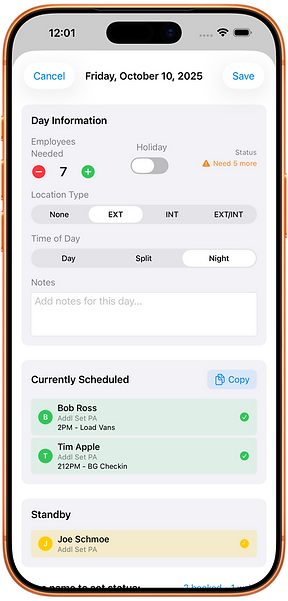
• Then select a date and choose related info as needed, like location or time of day.
• Tap employee names to book them or put them in standby.
• You can add notes to each day, such as reminders that your doing driving work that day, for example.
• You can also add notes to each employee per day, such as call times or job duties.
• The copy button will copy a list to your iPhone's clipboard of all the PAs booked that day with the notes so you can text it off to any ADs not using the app.

Create Project & Days
/01
How It Works - AD Background

• Before your shoot date, first, create your project.
• Then input the days from your BG Breakdown.


/02
Input Characters
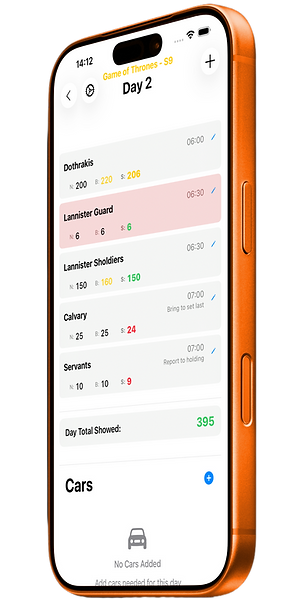
• Next, add each character group with needed count and call time.
• You can add a custom note with them or change the color of the card for personal organization.
• Share your project with your BG Check-In Team.
• Now watch your check-in team update the numbers live while you are on set.
• If the count is below or over, the color changes automatically to grab your eye quickly.
• Log the cars you have for the day as well.
• Input driver phone numbers so you can quickly call them from inside the app.


.png)

/01
How It Works - AD Pumpkin
.png)
Input Minors Info
• Before your shoot date, first, create your project like the other apps.
• Then add kids to the Minor List.
• This will create info cards for each minor, like a cheat sheet for their individual labor laws.
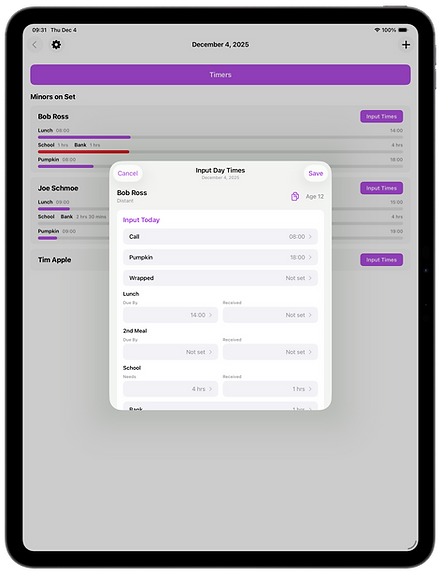
• On the day, input the minors call time and other info you'd like to track.

/02
Track Their Progress
• Auto Progress Bars will appear next to each minor that has input times.
• Progress Bars will change color depending on the urgency of the data.
• Making it easy to see a list of kids and notice the ones that need attention.
• Use the Timers button to create single or batch timers for all kids and categories.
• Saved timers will update the progress bars.
• Share your project with your BG PA or First Team PA so they can start timers on their end.


.png)

.png)
How It Works - AD Snap Shot
/01
Set Up Your Folders
• Before your shoot date, first, create your project like the other apps.
• Then create folders by scene, day, location or how ever you want.
• Folder names can auto embed onto photos taken.
• Then, on the day, use the camera to quickly snap continuity photos.


/02
Tag Your Photos
• After snapping, easily add camera setups, notes & custom tags in seconds.
• Notes & tags embed onto the photos so they don't get lost when exporting.
• You can edit the embedded notes & tags when ever you want.
• You can Search & Filter the folders by notes & tags as well.

